 Pictius Free image editor in your browser
Upscale an image
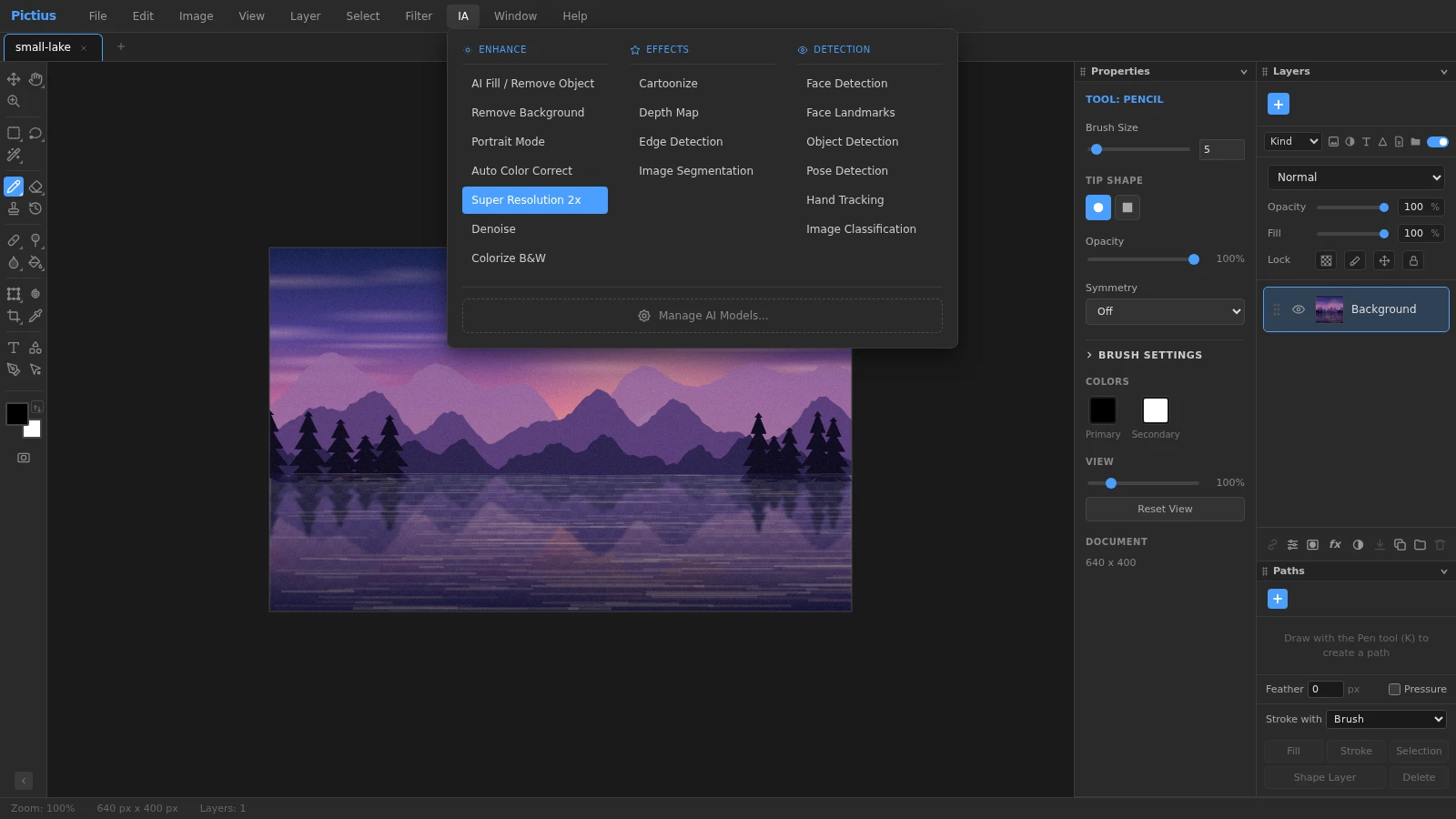
IA ▸ Super Resolution 2x doubles the width and height of an image in one step, with smooth interpolation followed by sharpening. For any other factor, use Image ▸ Image Size… and sharpen afterwards. Both make a small picture larger and cleaner, but neither can invent detail that the original never had.
- Free
- No install, no account
- Images stay on your device
- Layers, masks and AI
Double the size with Super Resolution 2x
- Open the image with File ▸ Open… (Ctrl+O).
- If the document has several layers, flatten it with Layer ▸ Flatten Image: the sharpening is applied to the active layer, and the others are only scaled.
- Make sure nothing is selected (Ctrl+D). With a selection, only that area is processed and the document keeps its size.
- Choose IA ▸ Super Resolution 2x. The document becomes twice as wide and twice as tall.
- Check the result at Actual Pixels (Ctrl+1). Apply it a second time for four times the original size.
- Export with File ▸ Export As…
Any size: Image Size and sharpening
For 150%, 300% or an exact pixel size, use Image ▸ Image Size… (Ctrl+Alt+I), set Units to Percent or Pixels, keep Constrain proportions on and choose Bicubic (smooth gradients). Enlarging always softens the picture a little, so finish with Filter ▸ Sharpen ▸ Unsharp Mask… or Filter ▸ Sharpen ▸ Smart Sharpen… Start with a small Radius, around 1 to 2 pixels, and raise Amount while you watch the preview.
Tips for better results
- Clean up first: enlarging also enlarges noise and compression blocks. Run Filter ▸ Noise ▸ Reduce Noise… before upscaling, or IA ▸ Denoise for a quick pass.
- Pixel art and icons: use Image Size with Nearest Neighbor (hard edges) and whole multiples, such as 200% or 400%, to keep every pixel square and crisp.
- Only the exported file: the Scale slider in File ▸ Export As… goes up to 400% and leaves the document unchanged.
- Each side can be up to 16,384 pixels, and very large documents need plenty of memory in the browser.
What upscaling can and cannot do
Super Resolution 2x is in the IA menu, but it does not use a trained model and does not generate new content. It interpolates the image smoothly and sharpens the result, so edges look clean and the picture holds up better at a larger size. It does not rebuild faces, readable text or textures that are not in the original. It runs instantly on your computer and needs no download.
Frequently asked questions
Is Super Resolution 2x generative AI?
No. It is high-quality interpolation followed by sharpening, done on your device. It does not add made-up detail, which also means it never changes what is in the picture.
How do I upscale an image four times?
Apply IA ▸ Super Resolution 2x twice, or use Image ▸ Image Size… at 400% with Bicubic and sharpen afterwards.
How do I enlarge a photo for printing?
Work out the pixels you need (inches × ppi), upscale to that size with Image Size, sharpen, and export to PDF or TIFF with the Resolution (dpi) you want.
Why does my upscaled image look blurry?
Enlarging spreads the same information over more pixels. Sharpen with Unsharp Mask or Smart Sharpen, and avoid upscaling a photo that has already been heavily compressed.
Can I upscale only part of an image?
You can crop to that part first with the Crop tool and then upscale the whole document. Super Resolution 2x on a selection does not change the document size.
Image editing guides
- Remove the background from an imageRemove the background from a photo in your browser: select the subject with AI, refine the edges with a layer mask and export a transparent PNG. No uploads.
- Remove objects from a photoErase unwanted objects, people or text from a photo: select them and use Content-Aware Fill, AI Fill, Spot Healing or Patch. Everything runs in your browser.
- Cut out hair and objects preciselyCut out people, hair, pets and products: start with Quick Selection or Select Subject, refine the edge in Select and Mask and output a layer mask or a new layer.
- Blur the background of a photoBlur the background of a photo to make the subject stand out: use Portrait Mode, or select the subject and apply Gaussian Blur to the rest. Free, in your browser.
- Resize an imageResize an image to exact pixels or a percentage with Image Size, choose the resampling method, and add or trim space around it with Resize Canvas. Free and private.
- Crop and straighten a photoCrop a photo to a ratio such as 1:1, 4:5 or 16:9, straighten a tilted horizon, fix perspective with Perspective Crop and trim empty borders. Free, in your browser.
- Convert an image to another formatConvert images in your browser: open PNG, JPG, WebP, AVIF, GIF or PSD files and export PNG, JPG, WebP, GIF, SVG, PDF or TIFF with the quality and scale you choose.
- Images at the right size for social mediaMake images at the right size for Instagram, Facebook, YouTube and more: crop to a preset ratio or use Export for Social Media to resize and save in one step.
- Open and edit PSD files onlineOpen PSD files in your browser with their layers, groups, masks, adjustment layers and effects, see what is kept or approximated, and export PSD, PNG or JPG.
- Add text to an imageAdd text to a photo with editable text layers: set font, size, color and spacing in the Character and Paragraph panels, then add a shadow or stroke with Layer Style.
- Add a watermark to your photosAdd a text or logo watermark to a photo, set its opacity and blend mode, then record it as an Action and apply it to many images at once with Batch.
- Adjust color and exposureFix dark, flat or off-color photos with Levels, Curves, Hue/Saturation and Shadows/Highlights, and keep every edit reversible with adjustment layers.
- Remove blemishes and red eyeRetouch portraits in your browser: remove spots and blemishes with Spot Healing and Healing, clone away distractions with Clone Stamp and fix red eye with one click.
- Layers and masks explainedLearn layers in Pictius: groups, blend modes, layer masks and clipping masks, adjustment layers, and .pictius project files that keep every layer editable.
- Batch edit images with ActionsRecord your edits once as an Action and play it on many images with Batch: resize, adjust, watermark and export them all in one go, right in your browser.